Milestone 1 complete: Fiber Studio is ready for early testing
Hi everyone,
Following up on my Fiber Studio + new repo update - Milestone 1 is done.
How we started (beginning of June)
Work on the v1 rebuild started at the beginning of this month. Before writing production app code, the first step was a UI prototype, a clickable mockup of how Fiber Studio should look and feel.
It is a standalone React mockup (no real node integration) covering the full v1 layout: setup wizard, home dashboard, wallet, channels, network, settings, and the main dialogs, all with sample data so we could click through flows and fix layout problems early.
Only after that design pass did we start building the real app in the main codebase, wiring up the official fnn node, keychain, setup, and the live home dashboard you can use today.
That order was deliberate: the old Fiber Desktop prototype proved demand; this UI prototype proved direction before we committed to implementation.
What M1 set out to do
M1 was about laying the foundation: a proper app shell, a guided first-run experience, and a home screen that shows what your Fiber node is doing, without needing a terminal or a VPS.
What you can do today
Download and install
Pre-release builds are on GitHub for macOS, Windows, and Linux (Apple Silicon and Intel Macs, Linux x64 and ARM64):
github.com/chukwuma619/fiber-studio/releases
These are unsigned installers (official app signing comes in M3). If macOS or Windows warns on first launch, the README install guide walks through how to open the app safely.
First-time setup — step by step
When you open Fiber Studio for the first time, a setup wizard walks you through:
- Choosing testnet or mainnet
- Connecting to the network via official Fiber relays (or a custom peer)
- Picking where your node data lives on your computer
- Importing your CKB wallet key
- Setting a wallet password
When you finish, the app starts your node automatically. No command line required.
Run your node from the app
From the main screen you can:
- Start and stop your Fiber node
- See whether it is running or stopped
- View recent logs if something needs attention
Your keys and password stay on your device, Fiber Studio does not send them to any server.
Home dashboard — see your node at a glance
Once the node is running, the Home screen shows live information such as:
- Your local balance across channels
- How many channels are active or still opening
- How many peers you are connected to
- Whether you are connected to the public relay network
- Channel liquidity and recent payment activity
App layout for what comes next
The sidebar matches the prototype’s planned structure:
- Home: live and working (M1)
- Wallet: send/receive (M2)
- Channels: open and manage channels (M2)
- Network: peers and connectivity (M2)
- Settings: app preferences, including in-app updates
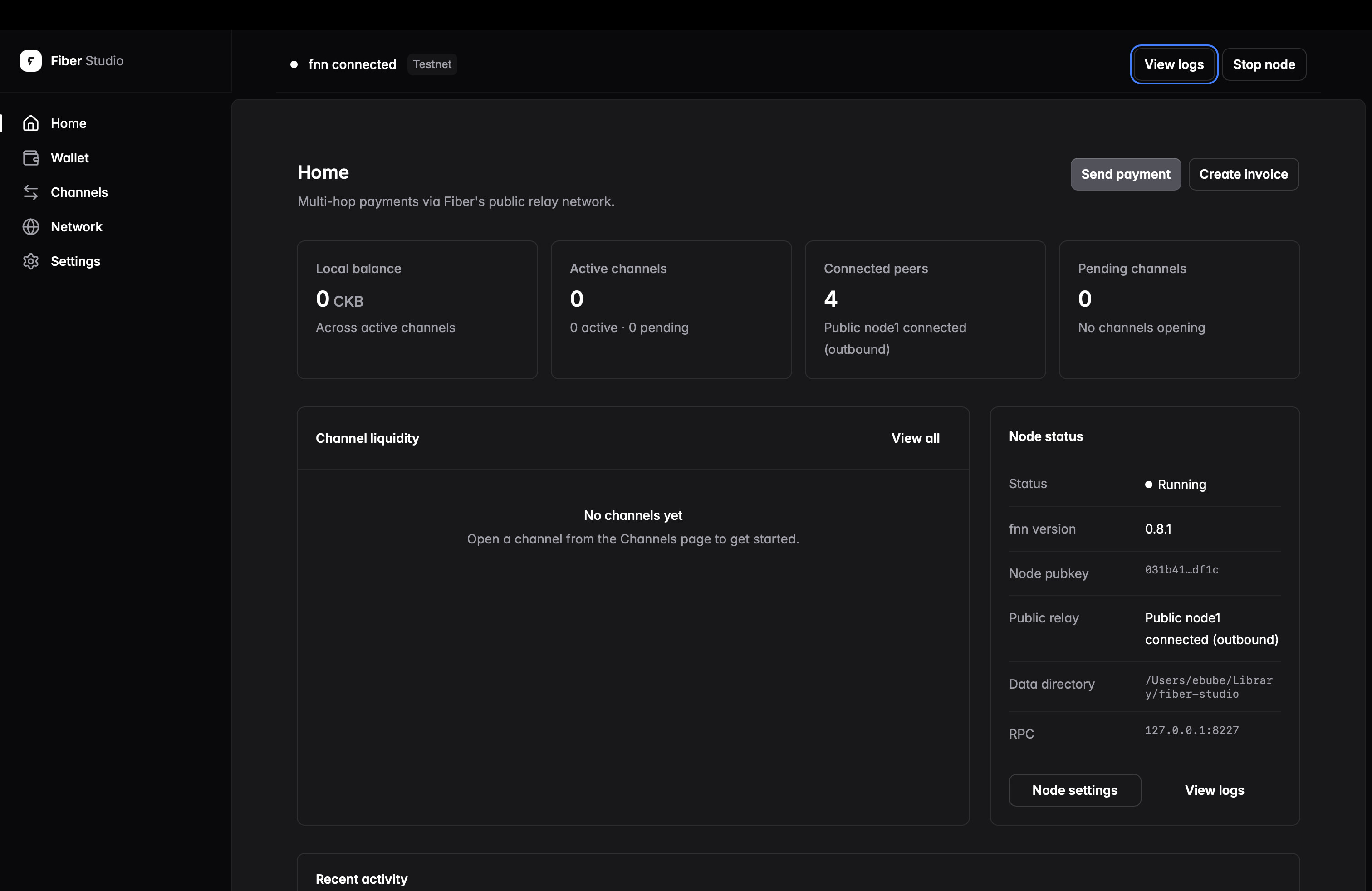
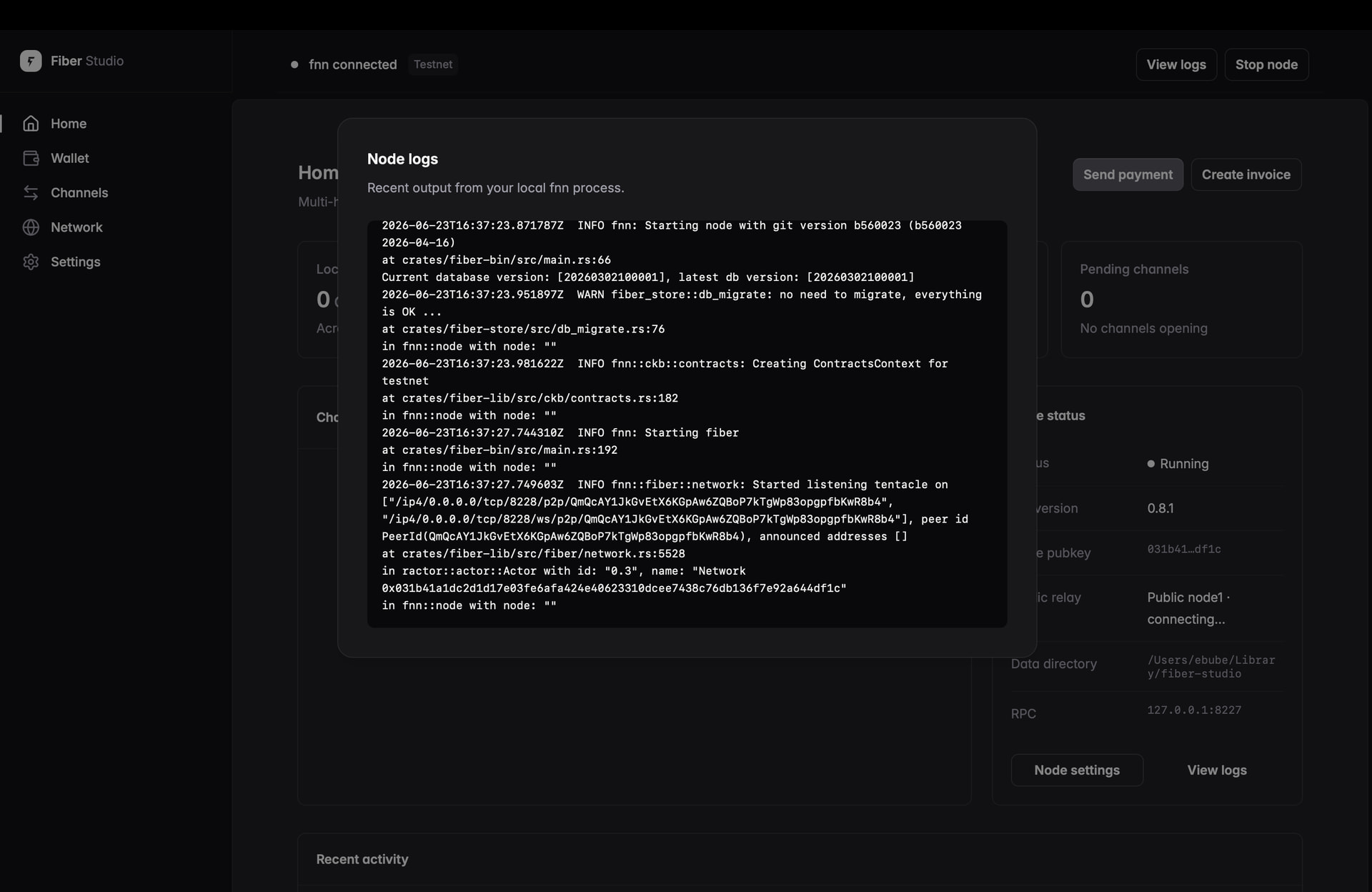
Wallet, Channels, and Network show “coming soon” placeholders for now. The prototype already sketches those screens; M2 is where we connect them to the real node.
A few things we added beyond the original M1 checklist
While focusing on the core shell and dashboard, we also shipped:
- Fiber Studio branding: new name, logo, and app icons (full website and custom domain still planned for M3 launch)
- In-app updates: the app can check for new versions and install them with progress feedback
- Automated builds for all supported platforms whenever we tag a release
- The official fnn v0.8.1 node bundled inside the app, so you do not install it separately
How this maps to the grant
| M1 goal | Status |
|---|---|
| UI direction validated before build | Done |
| New app shell and navigation | Done |
| Guided first-run setup | Done |
| Start / stop node + logs | Done |
| Home dashboard with live node info | Done |
| Dev builds on GitHub for testers | Done |
| Fresh install → setup → node on testnet | Verified |
| Dashboard reflects live node state | Verified |
Try it and tell us what you think
If you have been waiting for an easier way to run Fiber on your laptop, now is a good time to try it, especially on testnet, where there are no real funds at risk.
Please share feedback here on Nervos Talk or open an issue on GitHub:
- Does setup make sense?
- Is anything confusing on the Home screen?
- Any problems on your OS (Mac / Windows / Linux)?